Web Scraping
For the last few classes our programs read text that was already sitting on our own computer: strings we typed, and files we opened with open. That is useful, but almost all the text worth having lives somewhere else, on the web. Today we reach across the network, pull a page into our program as a plain string, and dig out the parts we want.
This is web scraping, and it is where four threads of this course finally come together. HTML gave us pages, CSS selectors gave us a way to point at pieces of a page, files gave us read and write, and exceptions gave us a way to cope when something breaks. Scraping is where all four pay off at once.
It is also a bit of an arms race.
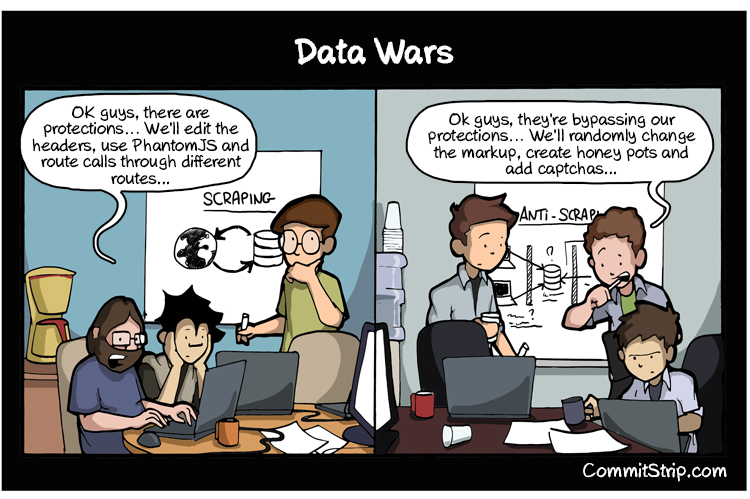
The comic is only half a joke: sites that don’t want to be scraped fight back, scrapers adapt, and around it goes. We’ll stay on the friendly end of that spectrum and scrape pages that are content to be read.
Getting a page from the web
We’ll start with the one genuinely new power, pulling a web page into Python. The tool is the requests library, and unlike everything we’ve used so far it is not built in, so we install it once from the terminal:
$ pip3 install requestsWith requests installed, downloading a page takes two lines: we hand requests.get a URL and read the page’s text off the .text attribute of what it hands back:
>>> import requests
>>> response = requests.get('https://www.gutenberg.org/files/345/345-h/345-h.htm')
>>> type(response.text)
<class 'str'>
That URL is the full text of Dracula on Project Gutenberg, and response.text is a str holding the page’s entire HTML. response.text is the same kind of string that open(filename).read() gave us back when we read files. The bytes came over a network instead of off a disk, but once they are a Python string, every tool you already own works on them: len, .lower(), .find, slicing, in, all of it.
When the request fails
Reaching across a network is not like reading your own disk, and things go wrong here that never went wrong with a local file: the page has moved, the server is down, the wifi drops. This is exactly what try/except from last week is for, and it is why we learned it right before this.
Every HTTP response carries a status code, a number that says how the request went. You have seen 404 in a browser; now you can read it in code, off the .status_code attribute:
>>> response = requests.get('https://www.gutenberg.org/files/345/345-h/345-h.htm')
>>> response.status_code
200
>>> response = requests.get('https://www.gutenberg.org/nonexistent-page')
>>> response.status_code
404
200 means OK, the page is yours; 404 means the server has no such page. The rough rule is that codes in the 200s are success, 300s are redirects, 400s are your fault (you asked for the wrong thing), and 500s are the server’s fault. The full list lives on MDN, and it is worth a skim once.
A careful scraper checks the code before it trusts the text, and wraps the request in try/except so one dead link can’t crash a program halfway through a thousand pages:
try:
    response = requests.get(url)
    if response.status_code == 200:
        text = response.text
    else:
        print('bad status:', response.status_code)
except requests.exceptions.RequestException as e:
    print('request failed:', e)
we try the request, use the text only when the status is 200, print a warning otherwise, and if the request never completes at all (no network, a bad hostname) the except catches it instead of letting the program die. The scraping project asks you to fetch many pages in a row, and this is the shape that survives the one page that misbehaves.
A command-line tool
A URL hard-coded in the file is a one-off. A real tool takes the URL as input, so you can point it anywhere without editing the code. The built-in argparse library reads values off the command line for you.
Let’s write a small wget, a program that “get”s a page from the “w”eb and saves it to a file. We describe the arguments we want, then read them back off args:
import argparse
parser = argparse.ArgumentParser()
parser.add_argument('--url')
parser.add_argument('--filename')
args = parser.parse_args()
Now args.url and args.filename hold whatever the user typed. We fetch the URL with requests and write the result to disk with the open/write pattern from the files topic:
import requests
response = requests.get(args.url)

with open(args.filename, 'w', encoding='utf-8') as f:
    f.write(response.text)
argparse supplies the where from and the where to, requests does the download, and open(..., 'w') writes the page out as utf-8, the same encoding we met when we first opened files. Run it from the terminal and the three libraries cooperate:
$ python3 wget.py --url https://www.gutenberg.org/files/345/345-h/345-h.htm --filename dracula.htmlIn about a dozen lines we rebuilt a tool people actually use, from one piece each of three different weeks. Much of the rest of this course looks like that.
One string, two ways to read it
Step back and notice the shape of what we’re doing, because it organizes everything that follows. Every program in this unit does two separable things: it loads text from somewhere, and it processes that text into something useful. We now have four ways to load: a string literal, a file (open), the command line (argparse), and the web (requests), and the point is that all four hand back the same thing, a plain str.
Which loader you reach for depends only on where the text lives, never on what you plan to do with it. Which processor you reach for depends only on what you want out of the text, never on where it came from. The two choices are independent, which is why we can learn them separately and then mix them freely. The rest of today is two new processors: one for data that arrives as lists and dictionaries (JSON), and one for data that arrives as a web page (Beautiful Soup).
JSON
Not everything on the web is a page meant for human eyes. A lot of it is structured data meant for programs: lists of records, each with the same fields. The standard text format for that is JSON, and it looks almost exactly like Python lists and dictionaries written out as text:
jsontext = '''
[
    { "text": "hello", "username": "Trump" },
    { "text": "world", "username": "Obama" },
    { "text": "hola",  "username": "Obama" },
    { "text": "mundo", "username": "Trump" }
]
'''
That string is a list of four records, each a dictionary with a "text" and a "username". The built-in json library turns that text into real Python objects with json.loads (“load string”):
>>> import json
>>> data = json.loads(jsontext)
>>> type(data)
<class 'list'>
>>> data[0]
{'text': 'hello', 'username': 'Trump'}
>>> data[0]['username']
'Trump'
json.loads took a str and gave us an ordinary Python list of dictionaries, which we index and loop over like any other. This is exactly this week’s lab, Analyzing Trump Tweets: you’ll load a pile of JSON files holding every tweet Trump sent from 2009 to 2018, join them into one big list, and count how often words like Obama and Russia show up.
The one trap in that lab is capitalization. Obama, OBAMA, and obama are three different strings, and you want all of them to count. The fix is to lower-case the text before you check, so every variant collapses to one:
>>> 'obama' in 'talking about OBAMA today'.lower()
True
Lower-casing before an in check is the standard way to search text case-insensitively, and the lab’s word counts use exactly this operation.
Beautiful Soup
Now the payoff we promised back in the CSS reading. Back then we said that the selectors you were using to color your own pages, things like div > .price and a[href], were the very selectors you would later use to extract data from pages you did not write. This is where we get there.
A web page you download is a str full of HTML, and HTML is a tree of nested tags, the same tree we drew for the document back in the CSS lesson. The Beautiful Soup library (imported from bs4) parses that tree and lets us pick pieces out of it with CSS selectors. It is not built in, so we install it once:
$ pip3 install bs4We hand BeautifulSoup the HTML string and the name of a parser, and get back a searchable soup object. Its .select method takes a CSS selector string and returns a list of every matching tag:
>>> from bs4 import BeautifulSoup
>>> html = '<div><b>this is HTML</b> inside a <em>Python <b>String!</b></em></div>'
>>> soup = BeautifulSoup(html, 'html.parser')
>>> soup.select('b')
[<b>this is HTML</b>, <b>String!</b>]
soup.select('b') found both <b> tags, at any depth, exactly as the CSS type selector b would have. Every selector from the CSS lesson works here unchanged: .price for a class, #header for an id, div > a for a direct child, a[href] for an attribute.
The point of scraping, though, isn’t the tags themselves but the data inside them. Two things do almost all the work: .text gives you the text between a tag’s opening and closing, and indexing with a key like tag['href'] gives you the value of an attribute. Take a little slice of an online store:
>>> html = '''
... <div class="product">
...     <a href="/item/123">Wireless Mouse</a>
...     <span class="price">$19.99</span>
... </div>
... <div class="product">
...     <a href="/item/456">Mechanical Keyboard</a>
...     <span class="price">$49.99</span>
... </div>
... '''
We select the prices by class and read each one’s .text:
>>> soup = BeautifulSoup(html, 'html.parser')
>>> for tag in soup.select('.price'):
...     print(tag.text)
...
$19.99
$49.99
We select the links and read both their text and their href:
>>> for link in soup.select('div.product > a'):
...     print(link['href'], link.text)
...
/item/123 Wireless Mouse
/item/456 Mechanical Keyboard
.select picks which tags using a selector you already know, .text and ['href'] pull the values out, and a for loop walks the list. This scraping loop is the first half of the scraping project, where you’ll pull names and prices off a real eBay results page instead of this toy one. Automate the Boring Stuff’s chapter on web scraping walks through more of what requests and bs4 can do together.
Counting matches, again
There’s a habit worth building before you scrape a real page, and it is the same one the selector quiz drilled in the CSS unit: given a selector and some HTML, how many tags does it match? Back then you checked yourself in the browser console with document.querySelectorAll. Now you check yourself in Python with len:
>>> len(soup.select('.price'))
2
Predict the count, then run len(soup.select(...)) and see if you were right. That predict-then-run loop is how selectors go from “I read about them” to “I can scrape with them.” The two practice files in this folder, practice quiz 1 and practice quiz 2, are built for exactly this: a page of HTML and a list of selectors, each one printing its count so you can check your guess. If you would rather read the counts than run the files, they are all in the answers. Watch the two things that trip people up, both carried straight over from CSS: a space between selectors (any descendant) versus > (a direct child), and the fact that adding two result lists with + keeps the duplicates that a single grouped selector would merge.
Is scraping legal?
A fair question, given that we just downloaded a whole book and started taking a store apart. The honest answer is “mostly, with limits, and it depends.” The important case in the United States is hiQ v. LinkedIn, where the courts held that scraping data that is already public, with no login and no password, is generally not a violation of the main federal anti-hacking law, the Computer Fraud and Abuse Act. The Electronic Frontier Foundation, who argued that side, has a readable write-up of why reaching public information should not be a crime.
That is not blanket permission. A site’s terms of service can still forbid scraping as a matter of contract, copyright still governs what you do with what you collect, and hammering a server with thousands of rapid requests can cross from “reading a public page” into “denying service to everyone else.” The decent-citizen rules are short: scrape public pages rather than private ones, go slowly, and don’t republish someone’s data as if it were your own. Our lab and project both stay well inside those lines.
Looking forward
We can now load text from four places and process it two new ways, and every piece hands the same str off to the next. Put them together and you have the web-scraping project: argparse takes a search term, requests downloads the eBay results, bs4 extracts each item’s name and price, and json saves the lot to a file. The right way to see that project is as a translator, turning eBay’s HTML into clean JSON, and most real programs are exactly that kind of translation from one shape of data into a better one.
This week’s lab, Analyzing Trump Tweets, drills the JSON half on its own first. Before you write those loops, though, notice how many of them have the same shape: walk a list, test each item, keep a running count. Hold onto that observation; later in the term we learn the shortcuts Python programmers actually use to write that shape in a single line. Next class we step out of Python entirely and learn the shell, the command line you have been typing into all along and the tool every project from here on is driven from.