Lab: The Messy Repo
The reading taught you a dozen commands. This lab is where you stop reading about them and start doing the one thing they are actually for: taking a folder that some past version of you left in a shambles and, in a few careful lines, making it orderly again.
Every programmer inherits messes. You clone a repo and half the files are junk; you come back to your own project after a month and cannot remember which of hw1.py, hw10.py, and hw_final_REAL.py is the one that runs. The person who reaches for the mouse spends an afternoon dragging files around. The person who reaches for the terminal fixes it before their coffee is cool, because in the shell one careful line beats a thousand clicks, and cleaning up after yourself is exactly the kind of boring, repeatable work this whole course is about automating.

The guru is insufferable, but he is not wrong. By the end of this lab you will have done in a handful of commands what would take a very long time by hand, and the last thing you do will be the literal first step of the docchat project.
Download: make_mess.sh, a script that builds your practice repo. (Prefer to fork? The same sandbox lives at github.com/rtealwitter/lab-shell.)
Make an empty folder, step into it, and run the script from the folder above it so the mess lands inside:
$ mkdir messy-repo
$ cd messy-repo
$ bash ../make_mess.sh
Built a messy practice repo in: /home/alice/messy-repo
Start by looking around with:  pwd  and  ls -a
The script only ever creates files in the folder you run it from; it deletes nothing, so you can re-run it any time you want a fresh mess.
What you’ll practice.
- Finding your way around a folder tree with
pwd,ls, andcd. - Moving, copying, deleting, and creating files with
cp,mv,rm, andmkdir. - Aiming a single command at many files at once with the
*and?wildcards. - Steering output with redirection (
>,>>) and pipes (|). - Hunting through an entire project with
grep -rn. - Standing up a brand-new project the way every project from here on begins.
Four tasks follow, and they are cumulative: do them in order, in the same terminal, and record what you find as you go.
Get your bearings
Before you change anything, look. The first question the shell can always answer is where am I?
$ pwd
/home/alice/messy-repo
Now see what you were handed. ls lists the folder you are standing in:
$ ls
README.md  cache.tmp  docs       hw1.py   hw2.py  lab02.py  lab04.py   src
build.tmp  debug.log  error.log  hw10.py  hw3.py  lab03.py  notes.txt  webpage
That is the mess: homework files, lab files, a couple of folders, and some junk, all thrown together. Add -a to also see the hidden dot-files, of which there are none yet, just the two special names . (here) and .. (one step up):
$ ls -a
.  ..  README.md  build.tmp  cache.tmp  ...
Hold that thought; in Task 4 you will make the first dot-files of your own.
Two of the entries above are folders. Step into one, look, and climb back out:
$ cd docs
$ ls
README_old.txt  archive
$ cd ..
cd docs walked one step down the tree, and cd .. walked back up to where you started. Read a short file straight to the screen with cat:
$ cat README.md
# project

some old code we keep meaning to clean up.
Finally, one good habit before you start moving things: keep a copy of anything you would hate to lose. cp takes a source and a destination and leaves the original untouched:
$ cp lab04.py lab04.py.bak
$ ls lab04.py*
lab04.py  lab04.py.bak
$ rm lab04.py.bak
You made a backup, confirmed it existed, then removed it because you did not really need it. That last rm is your first taste of the one command in this course with no undo and no trash can: a file you rm is gone. We typed it slowly and on purpose.
🖼️ Meme: The “YOU ARE HERE” dot on a shopping-mall map, relabeled
pwd.
Task 1: Find the flag
Somewhere in this repo, buried in one file among the twenty-odd scattered around you, is a secret string of the form FLAG{...}. Your job is to find it and report exactly where it lives.
You could open every file and read it. That is the mouse-user’s afternoon. The shell way is one line. grep searches for a pattern; add -r to search recursively through every folder below you and -n to print the line number of each match:
$ grep -rn 'FLAG{' .The single quotes around 'FLAG{' keep the shell from trying to interpret the { before grep ever sees it, quote your pattern and you never have to think about which characters are special. The . at the end means “here and everything below it,” so this one command reads every file in the tree for you.
grep prints each hit in the form path/to/file:linenumber:the matching line (some versions add a leading ./ to the path). Run it, read off the file and the line number where the flag lives, and keep them somewhere, you will record them in answers.txt at the end.
🖼️ Meme: Liam Neeson on the phone in Taken: “I don’t know who hid this flag. But I have a very particular set of skills. I will
grep -rnyou.”
Task 2: Tidy up
Time to file the homework away. Before you move anything, look at the difference between the two wildcards, because it decides whether you catch every file or miss one:
$ ls hw?.py
hw1.py  hw2.py  hw3.py
$ ls hw*.py
hw1.py  hw10.py  hw2.py  hw3.py
? matches exactly one character, so hw?.py matches hw1.py but not hw10.py, the 10 is two characters. * matches any run of characters, so hw*.py catches all four, hw10.py included. You want all four, so * is the tool.
This is the moment the reading warned you about: the same wildcard that moves four files will move four thousand, and rm would delete them just as cheerfully. So build the safe habit now, read the wildcard back to yourself before you press Enter. You just did, with that ls; the list it printed is exactly what the next command will act on.
Make a folder for the homework and sweep it all in with one mv:
$ mkdir homework
$ mv hw*.py homework/
$ ls homework
hw1.py  hw10.py  hw2.py  hw3.py
Four files filed in one line. Now the junk: the .tmp and .log files are build leftovers nobody needs. Preview the wildcard first, this is the read-it-back habit again, and with rm it is not optional:
$ ls *.tmp *.log
build.tmp  cache.tmp  debug.log  error.log
Those four, and only those four, are what the next command will destroy. If that list ever contains something you care about, stop. When it looks right, delete them:
$ rm *.tmp *.logLook at what you accomplished with three commands:
$ ls
README.md  docs  homework  lab02.py  lab03.py  lab04.py  notes.txt  src  webpage
The homework is filed, the junk is gone, and the repo is suddenly legible.
🖼️ Meme: Boromir, one finger wearily raised: “One does not simply
rm *without first reading the wildcard back to oneself.”
Task 3: Count things
Now take the measure of the repo. Three questions, three one-liners; record each number for your answers.txt.
First, how many lines of Python are sitting at the top of your repo? cat *.py prints those files one after another, and the pipe | feeds that stream straight into wc -l, which counts lines:
$ cat *.py | wc -l
17
Next, how much unfinished work is left in the whole project? Every loose end in this course is marked with a TODO comment, so count them recursively and pipe the result to wc -l:
$ grep -rn TODO . | wc -l
7
Finally, how many Python files are at the top level?
$ ls *.py | wc -l
3
Now stop and notice something. You have four Python files under homework/ and more under src/, yet ls *.py says 3 and cat *.py counted only the three lab files at the top. That is not a bug: ls and cat with * look only in the folder you are standing in, the * does not climb into subfolders. grep -rn, on the other hand, found all 7 TODOs, including the ones in the homework you just moved and the code down in src/, because -r does recurse. That contrast, * stays on this floor, -r walks the whole building, is one of the most useful distinctions the shell has. Keep it straight and you will always know which command sees which files.
🖼️ Meme: Surprised-Pikachu, mouth agape, when
ls *.pysays 3 but you know there is more Python hiding in that repo.
Task 4: Scaffold the docchat project
Here is the payoff, and it is not a drill. This is the exact opening of the docchat project. In a couple of weeks you write docchat, a program that chats with your documents through a language model, and every project from here on begins with the same four moves. You are going to do them now.
Make the folder, step into it, and put it under version control:
$ mkdir docchat
$ cd docchat
$ git init
Initialized empty Git repository in /home/alice/messy-repo/docchat/.git/
Calling a language model costs money, so the docchat program needs an API key: a secret string that authorizes the call and bills it to your account. It lives in a file named .env. Drop it in with redirection, > sends the output of echo into a brand-new file instead of the screen:
$ echo "GROQ_API_KEY=gsk_your_key_goes_here" > .envA key like that must never be committed to git, because git keeps every version forever, delete it in a later commit and it is still in the history. The fix is a .gitignore file listing what git should pretend does not exist. Create it with >, then add a second line with >>, which appends instead of overwriting:
$ echo ".env" > .gitignore
$ echo "__pycache__/" >> .gitignore
$ cat .gitignore
.env
__pycache__/
> made the file with one line, >> added a second without clobbering the first, and now git will ignore both your secret key and Python’s cache folder. That single->-then->> move, overwrite once, append after, is how you build up a config file a line at a time.
Step back out to your repo when you are done:
$ cd ..You just set up docchat. In a couple of weeks you will fill it with code; today you proved the setup is muscle memory.

From your hands to your agent’s hands
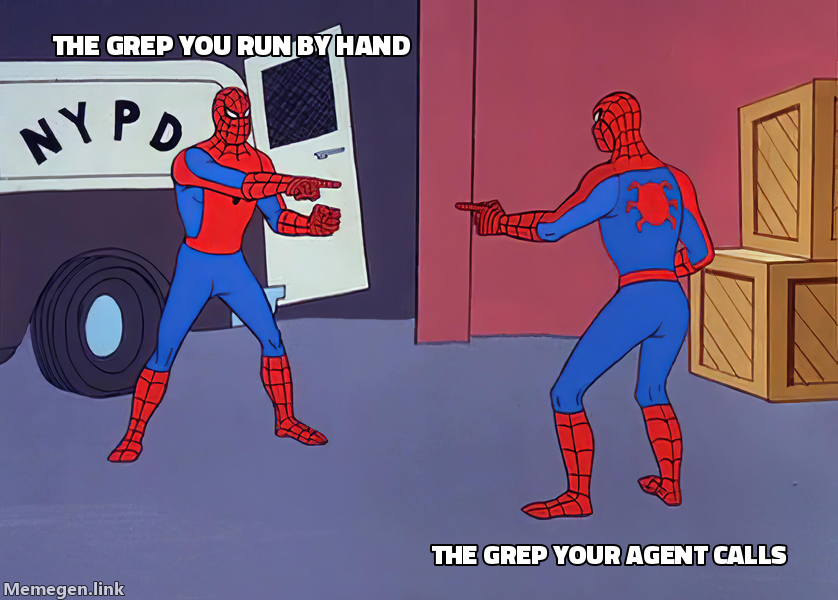
One last thing worth seeing before you submit. The three commands you leaned on hardest today, ls to list a folder, cat to read a file, grep to search across files, come back in Project 3, the docchat you just scaffolded. There, your program hands a language model a small set of tools it can call, and those tools are named ls, cat, and grep. They do exactly what you did by hand: the model calls ls to see what files exist, cat to read one, and grep to search them, then answers your question from what it actually found.
So today was not just tidying. You ran, by hand, the exact operations you will soon rebuild in Python as tools an AI agent calls for itself. The shell is where you learn what those tools do before you teach a model to use them.
Submitting
Record your findings in a file called answers.txt, built with the redirection you just practiced. Use > for the first line and >> for the rest, filling in the real numbers you got:
$ echo "flag location: docs/archive/fieldnotes.txt line 3" > answers.txt
$ echo "python lines at top level: 17" >> answers.txt
$ echo "unfinished markers in the tree: 7" >> answers.txt
$ echo "python files at top level: 3" >> answers.txt
$ cat answers.txt
Notice we wrote “flag location” and “unfinished markers” rather than pasting the literal words you searched for, if you had written the raw FLAG{ or TODO into answers.txt, your own answer file would turn up the next time you grep for them. Your notes are part of the haystack now, and that is a genuinely useful thing to remember.
Then save the three commands from Task 2 as a script called tidy.sh, so the tidy is repeatable:
$ cat tidy.sh
mkdir homework
mv hw*.py homework/
rm *.tmp *.log
Finally, turn the whole thing into a repo and push it:
$ git init
$ git add answers.txt tidy.sh homework
$ git commit -m "tidy the messy repo"
Push to a repo of your own on GitHub and submit the repository URL on Gradescope. You are graded on the answers.txt and tidy.sh you produced; the homework/ folder and the junk you cleared are the evidence your tidy actually ran. If any command surprised you along the way, say so in a sentence when you submit, being upfront about what did and did not work only ever helps you.