The Shell
For the last several weeks we have been writing Python. And this whole time we have been typing commands into a terminal window without once asking what that window is. Every time you ran python3 to start the REPL, or python3 -m doctest lab.py to check a lab, you were talking to a program called the shell. Today we learn to talk to it on purpose.
The shell is a program that reads commands you type and runs other programs for you. Before windows, icons, and the mouse, it was the only way to use a computer: you typed a command, the machine did it and printed the result, and you typed the next one. That sounds primitive, and for pointing at a thing on screen, it is. But for telling a computer to do the same thing to a thousand files, typing one careful line beats a thousand clicks, and automating that kind of tedium is what this whole course is about.
The shell has a reputation:

The bearded Unix user is a stereotype for a reason. People who live in the shell really can do in one line what takes everyone else an afternoon of clicking, and they can be insufferable about it. We are going to keep the one line and skip the condescension.
You do not type at the shell directly; you type into a terminal, a window that shows the shell’s prompt and its output. In VS Code, open one with Terminal → New Terminal. Mac and Linux come with a shell built in; Windows users reach one through WSL or Git Bash, set up the same way as your other tools.
The prompt
The first thing the terminal shows you is a line ending in a $. That $ is the prompt: the shell saying “your turn.” You type a command after it, press Enter, and the shell runs the command, prints whatever it produced, and shows the prompt again for the next one.
The simplest command asks the shell where you are:
$ pwd
/home/alice/cs40
pwd stands for print working directory, and it answers “which folder am I standing in right now?” A shell is always sitting inside exactly one folder, called the working directory, and pwd tells you which. For the rest of these notes, a line starting with $ is one you type, and the line under it with no $ is what the shell printed back.
The filesystem tree
To move around, you first have to see your files the way the shell does. They are organized as a tree, the same shape as the HTML document tree from the CSS week, but made of folders instead of tags.
See what is in the working directory with ls:
$ ls
hw1.py   hw2.py  lab02.py  lab04.py   webpage
hw10.py  hw3.py  lab03.py  notes.txt
ls lists the working directory: here, eight files and one folder named webpage. Commands often take options (also called flags), which start with a dash and change what the command does. Add -a to also show hidden files, the ones whose names begin with a dot:
$ ls -a
.   .gitignore  hw10.py  hw3.py    lab03.py  notes.txt
..  hw1.py      hw2.py   lab02.py  lab04.py  webpage
Three new names appear. .gitignore is a configuration file that was there all along, hidden only because it starts with a dot; tools tuck their settings behind a dot so they stay out of your way, and the .env and .gitignore of the docchat project will do the same. The other two, . and .., are not really files, and we will need them in a minute.
Add -l for a long listing with sizes, dates, and more:
$ ls -l webpage
total 8
-rw-r--r-- 1 alice alice 54 Feb  3 14:22 index.html
-rw-r--r-- 1 alice alice 20 Feb  3 14:22 style.css
Each line describes one file: its size in bytes (54), the date it last changed, and its name. The leading - marks an ordinary file; a folder would show a d there instead.
Here is that tree drawn out for our folder:
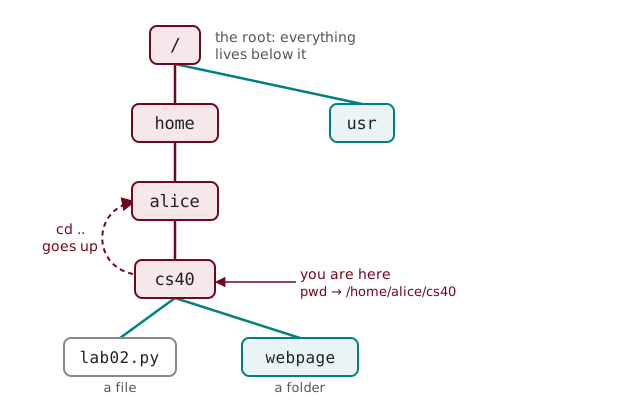
At the very top is /, the root, the single folder that contains everything else on the machine. Below it sits home, and inside that your personal folder alice, and inside that cs40, where we are standing, holding the files and the webpage folder we just listed.
Moving around
Naming a file means naming a path to it through that tree, and there are two ways to write one. An absolute path starts at the root and spells out every folder down to the file: /home/alice/cs40/lab02.py. It works from anywhere, because it starts from the one place the whole tree shares. A relative path starts from wherever you happen to be standing: from inside cs40, that same file is just lab02.py, and the project page is webpage/index.html.
Move into a folder with cd:
$ cd webpage
$ pwd
/home/alice/cs40/webpage
$ ls
index.html
style.css
cd changes directory: we walked one step down the tree into webpage, and pwd confirms the new working directory. To climb back up, use .., the special name for the parent folder:
$ cd .... always means “one step toward the root,” so cd .. returns us to cs40; that is the dashed arrow in the diagram above. The other odd name, ., means “the folder I am in right now,” which sounds useless until it isn’t (we use it at the end of today). Two shortcuts are worth memorizing now: cd with no folder at all jumps straight to your home folder, and ~ is shorthand for that home folder inside any path. From cs40, where do you think cd ../.. lands you? Try it, then run pwd and check.
Making and moving files
Listing and moving is half the job; the shell also reads, copies, renames, and deletes.
Read a short file straight to the screen with cat:
$ cat notes.txt
remember to email the professor about the extension
cat prints a file’s contents to the terminal, the fastest way to glance at something short without opening an editor. The name is short for concatenate, because given several files it prints them one after another, a trick we put to use shortly.
Copy a file with cp, which takes a source and then a destination:
$ cp lab04.py lab04.py.bak
$ ls
hw1.py   hw2.py  lab02.py  lab04.py      notes.txt
hw10.py  hw3.py  lab03.py  lab04.py.bak  webpage
cp leaves the original untouched and writes a second copy under the new name, here a .bak backup of lab04.py.
Delete that copy again with rm:
$ rm lab04.py.bakrm removes a file, and here is the one warning that matters all term: there is no undo and no trash can. A file you rm is gone. Type slowly, and be doubly careful once wildcards enter the picture, which is next.
Rename a file with mv, and make a folder with mkdir:
$ mv notes.txt reminders.txt
$ mkdir homework
$ ls
homework  hw10.py  hw3.py    lab03.py  reminders.txt
hw1.py    hw2.py   lab02.py  lab04.py  webpage
mv moves a file, and moving a file to a new name in the same folder is just renaming it, so notes.txt is now reminders.txt: same file, new label. mkdir makes a directory, so we now have an empty homework folder to tidy into. Give mv a folder as its destination instead of a name, and it moves the file into that folder, which is exactly what we want for all those stray hw files.
Wildcards
Everything so far touched one file at a time. The shell’s real speed shows up when one command touches many files at once, and that is what wildcards are for.
The * wildcard matches any run of characters, so *.py means “every name ending in .py”:
$ ls *.py
hw1.py  hw10.py  hw2.py  hw3.py  lab02.py  lab03.py  lab04.py
The shell expands *.py into the list of matching names before ls ever runs, so ls simply receives all seven filenames as if you had typed them out. That expansion is done by the shell, not by ls, which is why the very same *.py works just as well with cp, rm, and mv.
The ? wildcard is pickier, matching exactly one character:
$ ls hw?.py
hw1.py  hw2.py  hw3.py
hw?.py matches hw1.py, hw2.py, and hw3.py, but not hw10.py, because ? stands for a single character and 10 is two of them.
Now the payoff: move all four homework files into homework in one line with *:
$ mv hw*.py homework/
$ ls
homework  lab02.py  lab03.py  lab04.py  reminders.txt  webpage
$ ls homework
hw1.py  hw10.py  hw2.py  hw3.py
hw*.py matched all four names and mv moved every one into homework/: the work of four drag-and-drops in a single command. This is the automate-the-boring-stuff spine of the course in one line, because that command costs you the same keystrokes whether it moves four files or four thousand. The same reach is why rm deserves respect: rm *.py would delete every file it matches just as happily, so always read a wildcard back to yourself before you press Enter.
Redirection and pipes
So far every command printed its result to the screen. The last idea today is controlling where a command’s output goes.
By default output lands in the terminal, but > redirects it into a file instead:
$ ls *.py > files.txt
$ cat files.txt
lab02.py
lab03.py
lab04.py
> sends the output of ls *.py into files.txt rather than to the screen, and cat confirms it arrived. A single > overwrites the file each time; use >> when you want to add to the end instead. You will use this exact move to set up a project’s config, dropping one line into a brand-new .env file with echo "GROQ_API_KEY=..." > .env.
More useful still is the pipe, |, which sends one command’s output straight into another command as its input, with no file in between:
$ cat *.py | wc -l
14
cat *.py prints all three lab files one after another (there is the concatenate trick), and | feeds that stream into wc -l, which counts lines. So we just counted every line of Python we have written across all our labs, 14, in one line. Picture | as a length of pipe joining two tools: whatever flows out of the command on the left flows into the one on the right.
Count the files themselves the same way:
$ ls *.py | wc -l
3
ls *.py lists the three files and wc -l counts the lines it was handed: three. Small tools that each do one thing, joined by pipes, is the entire design of the shell.
Gluing tools together
One more tool shows why that design matters. grep searches its input for a pattern and prints every line that matches; point it at our files to find leftover work:
$ grep TODO *.py
lab03.py:    # TODO: handle the empty string
grep read through all three labs and found the single line still marked TODO, then told us which file it lives in and what it says. To search a whole project, folders and all, add -r for recursive and -n for line numbers:
$ grep -rn TODO .
./lab03.py:2:    # TODO: handle the empty string
Remember that . means “here and everything below it,” so this hunts every file in the tree for unfinished work and reports lab03.py, line 2.
Step back and look at what a handful of one-line commands just did. We took a messy folder, tidied it, counted our own code, and found every loose end, with no clicking and no opening of files. The pattern never changes: learn a small set of tools and a way to join them, and jobs that were tedious by hand stop being tedious at all.
Looking forward
The shell is also how you set up and run everything else from here on. In a couple of weeks we write our first real program, one that chats with your documents using an LLM, and it opens with a burst of shell:
$ mkdir docchat
$ cd docchat
$ git init
Initialized empty Git repository in /home/alice/docchat/.git/
git init starts tracking the folder with git, and pulling in the libraries the project needs is one more command, pip3 install -r requirements.txt. Even running your finished code is a shell command, the same python3 you have typed since week one:
$ python3 hw1.py
1
Git, the package installer, your own scripts: every tool the rest of this course leans on is a program you drive from this prompt. The shell is the glue that holds them together. Study for the quiz on paper, and practice until reaching for the terminal feels quicker than reaching for the mouse, because before long it will be.