Strings and Files
Everything we have written so far computed with values we typed into the program ourselves: a number here, a string there, a range we spelled out by hand. That is a strange way to program, because the whole point of automating the boring stuff is to work on data we did not make up, like a folder of files, a page pulled off the web, or a spreadsheet somebody emailed us. Today we reach outside the program for that data, and the doorway is the file.
There is a catch waiting for us, and it is the thing beginners underestimate most: text is more complicated than it looks. A file is really just a pile of numbers, and turning those numbers into the letters you see takes an agreement, called an encoding, that the writer and the reader both have to share. So this reading has two halves. First we read and write files the plain way. Then we look at what a file actually holds, which is where Unicode comes in, and why “just open the file” sometimes explodes.
Reading a file
Let’s start with the simplest possible case: a file that already exists, full of plain English text, sitting right next to our program. Say it is a two-line poem in a file called poem.txt. The open function hands us a connection to that file, and the file’s read method returns the entire contents as one string:
>>> f = open('poem.txt')
>>> contents = f.read()
>>> f.close()
>>> print(contents)
the cat sat
on the warm mat
open('poem.txt') returns a file object, which we stored in f; it is not the text, it is a handle to the file. Calling f.read() walks through the whole file and gives back one string, newlines and all, which we saved in contents. The f.close() line matters more than it looks: an open file ties up a resource in the operating system, and forgetting to close it is a classic bug that bites once your program opens thousands of them.
Because closing is so easy to forget, Python gives us a construction that closes the file for us, and it is how you should open files from now on:
>>> with open('poem.txt') as f:
...     contents = f.read()
The with block opens the file, runs the indented code, and closes the file the instant that block ends, even if the code inside crashes. Same contents as before, and no close to forget.
Often we don’t want the whole file at once; we want to walk it one line at a time. A file object is something you can loop over directly, and each trip through the loop hands you the next line:
>>> with open('poem.txt') as f:
...     for line in f:
...         print(repr(line))
'the cat sat\n'
'on the warm mat\n'
I printed each line with repr so you can see the \n newline character hiding at the end of every line; the file has it, even though print normally swallows it. That trailing \n is the number-one surprise when you start processing files line by line, so now you have met it. For the fuller tour, Al Sweigart’s Automate the Boring Stuff, Chapter 9 is the reference for this week.
Paths
That first example assumed something we glossed over: that poem.txt sits in the exact folder our program runs from. The moment it does not, open fails, and the error is the one you will see more than any other this term:
>>> open('nope.txt')
FileNotFoundError: [Errno 2] No such file or directory: 'nope.txt'
To fix it you have to know how the computer finds a file, which means talking about paths. A path is the address of a file, and there are two kinds.
An absolute path gives the file’s exact location starting from the top of the drive. On macOS and Linux it starts with a /, like /Users/alice/csci40/poem.txt; on Windows it starts with a drive letter, like C:\Users\alice\csci40\poem.txt. An absolute path names the same file no matter what.
A relative path is anything else, like poem.txt or data/poem.txt, and it is read relative to the folder your program is currently running in, called the working directory. Python will tell you that folder if you ask, and the answer is an absolute path that depends on where you started the program, something like:
>>> import os
>>> os.getcwd()          # cwd = "current working directory"
'/Users/alice/csci40'
When you hand open a relative path, Python glues it onto the working directory to get an absolute one: with the working directory above, open('poem.txt') really opens /Users/alice/csci40/poem.txt. A FileNotFoundError means the file is not where the working directory says to look, even if it is exactly where you pictured it.
You steer the working directory from the terminal, not from Python, with three commands you will use constantly:
$ pwd                 # print working directory: where am I?
$ ls                  # list the files here
$ cd data             # change directory: move into the "data" folder
(On Windows the first two are cd with no argument and dir.) The special name .. means “the folder one level up,” so cd .. backs you out of the folder you are in. When a lab tells you to run something “from inside the repo,” this is what it means: cd into that folder so your relative paths line up.
Writing a file
Reading is half the job; the other half is writing our results back out, and it is almost the same code with one change. We pass open a second argument, the mode, and 'w' opens the file for writing:
>>> with open('shopping.txt', 'w') as f:
...     f.write('apples\n')
...     f.write('bread\n')
7
6
Those two numbers are the REPL echoing what each f.write returns, the count of characters written (7 for apples\n, 6 for bread\n); you can ignore them. The write method does not add newlines for you, so we put the \n in ourselves; leave them out and both words land on one line. Two cautions about 'w': it creates the file if it does not exist, and it erases the file if it does, the instant you open it. Check the result:
>>> with open('shopping.txt') as f:
...     print(f.read())
apples
bread
The default mode we used at the very start, with no letter, is 'r' for read, so open('poem.txt') and open('poem.txt', 'r') are the same call. With reading, writing, and paths, you can already automate a real chore: read a file, change something, write it back. That read-change-write shape is exactly the markdown compiler you will build for Project 1, which opens a .md file, rewrites its contents as HTML, and writes out an .html file.
Now, the catch I promised.
Text is numbers
Down at the hardware, a file holds no letters at all. It holds bytes: whole numbers from 0 to 255, and nothing else. Every letter you have ever saved was really a number, written down according to some agreed-upon table that says which number means which letter.
The original table was ASCII, from 1963, and it covers what an American typewriter had: the letter A is 65, B is 66, a space is 32, and so on up to 127. Python does the lookup in both directions for you, with ord (letter to number) and chr (number to letter):
>>> ord('A')
65
>>> chr(65)
'A'
For English, ASCII was fine for decades. The trouble is the other few thousand languages. ASCII has no 友, no ñ, no م, no 😊; its numbers stop at 127, and the world’s writing needs far more than 127 symbols.
The fix is Unicode, one gigantic table that aims to give every character in every human language its own number, called a code point. Unicode is a superset of ASCII, so A is still 65, but it keeps going, past the Latin alphabet, through Chinese and Arabic and Korean, all the way out to emoji. ord and chr reach the whole table:
>>> ord('友')
21451
>>> ord('😊')
128522
An emoji is a character with a code point, the same kind of thing as A, just farther up the table. Python has fluent Unicode support built in, which is a big part of why it is a comfortable language for real-world text; you can drop non-English text straight into your strings, and you can even name variables in other alphabets.
Code points and glyphs
Here is where it gets genuinely strange, and it is worth slowing down for. A code point is a number; the picture drawn for that number is chosen by the font on your screen, and different systems draw the same number differently.
The famous case is the pistol emoji, code point U+1F52B. For years every platform drew it as a realistic revolver, and then in 2016 Apple swapped their picture for a bright green water pistol. Nothing about the stored number changed, only the drawing, so the same message with the same code point could arrive as a threat on one phone and a toy on another. (Emojipedia has the whole saga.) The same gap is the joke in this xkcd, which proposes a “vomiting modifier” you could attach to any emoji to make a vomiting version of it:
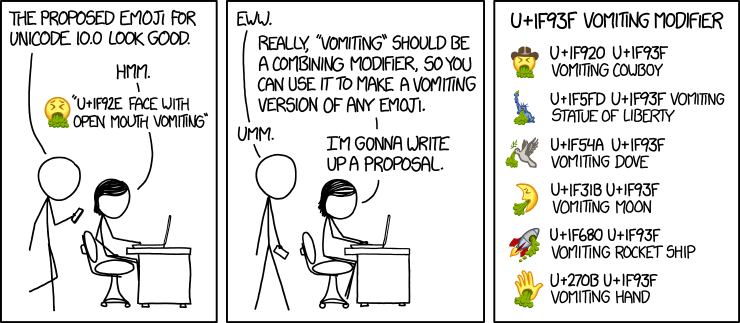
The joke is real Unicode: some code points are combining characters that attach to the character before them. That means a symbol you see as one letter can be stored as two code points, and this bites in ordinary text, not just emoji. You can write any code point directly with the \u escape followed by its number in hex, so '\u0301' is the combining acute accent, code point U+0301. Take the accented á: it can be one precomposed code point, or a plain a followed by that combining accent, and the two are not equal:
>>> len('á')            # precomposed: one code point
1
>>> len('a\u0301')      # 'a' plus a combining accent: two code points
2
>>> 'á' == 'a\u0301'
False
Both strings look identical on screen, yet Python says they differ, because == compares code points and the second string carries an extra one. This is why two names that look the same can refuse to match in your code. The fix is normalization, which rewrites a string into a standard form; unicodedata.normalize('NFC', ...) packs combining characters back into single code points:
>>> import unicodedata
>>> unicodedata.normalize('NFC', 'a\u0301') == 'á'
True
The rule to remember: if you are comparing strings that came from different places, normalize them first, because Python will not do it for you.
The look-alike trap is also a security problem. The Latin a and the Cyrillic а are different code points that most fonts draw identically:
>>> 'apple' == 'аpple'      # the second word starts with a Cyrillic 'а'
False
Attackers register look-alike domain names exactly this way: аpple.com with a Cyrillic а reads as apple.com to your eye but points somewhere else entirely. This is called a homoglyph attack, and it is why your browser sometimes shows a foreign domain as a string of xn-- gibberish instead of the pretty letters. A smaller version of the same problem will bite you personally: the “smart quotes” a word processor produces, like '\u2019', are a different code point from the straight ' that Python needs, so pasting code out of Google Docs yields a SyntaxError that is maddening to spot. Write code in a code editor like VS Code, never in a document editor.
Encodings
We have code points, which run up past a million, but a byte holds only 0 through 255. So how does a code point like 128522 (that smiling emoji) get stored in bytes? That is the job of an encoding: a rule for turning a sequence of code points into a sequence of bytes, and back. Two string methods do the conversion, .encode for string to bytes and .decode for bytes to string:
>>> 'hello world'.encode('utf-8')
b'hello world'
The result, with its leading b, is a bytes object: raw numbers, not text. For plain English it looks unchanged, because the most common encoding, UTF-8, spends exactly one byte per ASCII character and reuses ASCII’s own numbers. That backward compatibility is a big reason UTF-8 won. But UTF-8 is variable-length: characters outside ASCII cost more than one byte, and different encodings make different trade-offs. Count the bytes three Chinese characters take under three Unicode encodings:
>>> len('计算机'.encode('utf-8'))
9
>>> len('计算机'.encode('utf-16'))
8
>>> len('计算机'.encode('utf-32'))
16
Same three characters, three byte counts: UTF-8 spends three bytes each here, UTF-16 spends two each (plus a couple of bytes of bookkeeping), and UTF-32 spends a flat four each. All three can represent every Unicode character, which is what makes them safe defaults; older encodings like ASCII simply cannot hold 计算机 at all. UTF-8 is the one that took over the web:
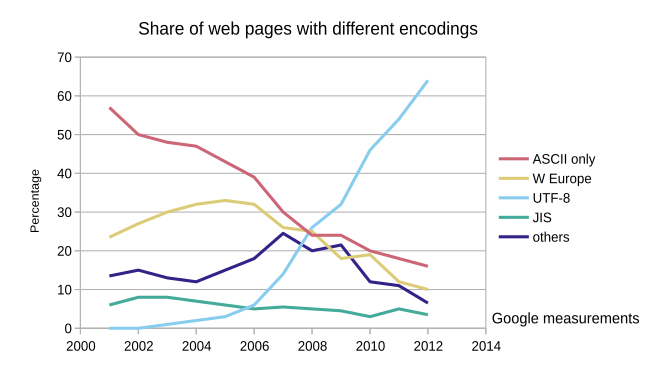
This chart tracks the encodings web pages were served in over time, and the pale UTF-8 line climbs from nearly nothing around 2001 to overtake every older encoding within a decade. Today UTF-8 is the default almost everywhere, and unless you have a specific reason not to, it is the encoding you should reach for. When you need the deeper details, Real Python’s guide to Unicode and encodings is the reference for this half of the reading.
Files and encodings
Now we can close the loop back to files. When you open a text file, Python has to decode its bytes into a string, which means it needs to know the encoding, and for anything beyond plain English you should say which one:
>>> with open('poem.txt', encoding='utf-8') as f:
...     contents = f.read()
Hand open the wrong encoding and it cannot do the lookup, because the bytes do not spell valid characters in that table, and Python raises a UnicodeDecodeError. We can trigger it directly on two bytes that are a valid character in China’s GB2312 encoding but not in Taiwan’s Big5:
>>> b'\xc8\xcb'.decode('gb2312')
'人'
>>> b'\xc8\xcb'.decode('big5')
UnicodeDecodeError: 'big5' codec can't decode byte 0xc8 in position 0: illegal multibyte sequence
b'\xc8\xcb' is a bytes object written with two \x escapes, the raw numbers 0xc8 and 0xcb, with no encoding attached. Decoded as GB2312 they spell 人 (“person”); decoded as Big5 they spell nothing legal, so the decode fails. Python cannot guess the right encoding from the bytes alone, which is the deep lesson here: whenever you hold bytes, you must be told, separately, which table they were written with. When you meet a UnicodeDecodeError, it almost always means “right file, wrong encoding.”
Looking forward
You can now read a file, write a file, find it by its path, and reason about the bytes and code points inside it. This week’s two labs drill both halves: Downloading a Video starts with running a real file-downloading script, and File Encodings moves on to prying open historical documents stored in Chinese and Portuguese encodings. There is also a practice quiz for this material; work it on paper, the way the real quizzes are taken, and only then open the answers.
These are the tools the rest of the course runs on. When we scrape web pages in a few weeks, a page arrives as bytes we decode (almost always UTF-8) before we can pull anything out of it. And there is one loose end: opening the wrong encoding crashed our program with a UnicodeDecodeError, which is fine at the REPL but fatal in a script grinding through a thousand files, where one bad file would kill the whole run. Next class we learn to catch errors like that with try and except, so a program can recover from bad input instead of falling over.